Body
PUBLIC > How To
Description
This KB gives instructions on how to connect your Macintosh computer to the SLCC VPN Client.
Criteria
SLCC’s VPN Client is available exclusively to faculty and staff, providing secure remote access to college resources.
How to connect your Macintosh computer to the SLCC VPN Client.
1. Go to https://sslvpn.slcc.edu. Sign in with your username and password.

2. Microsoft SSO will prompt for Multifactor Authentication (MFA) if your browser hasn’t already authenticated with your Office 365 account.

3. Click the macOS client install download link.

4. Go to your Downloads folder and unzip the BIGIPMacEdgeClient file. Open the file mac_edgesvpn.pkg to begin the installation.

5. Click Continue.

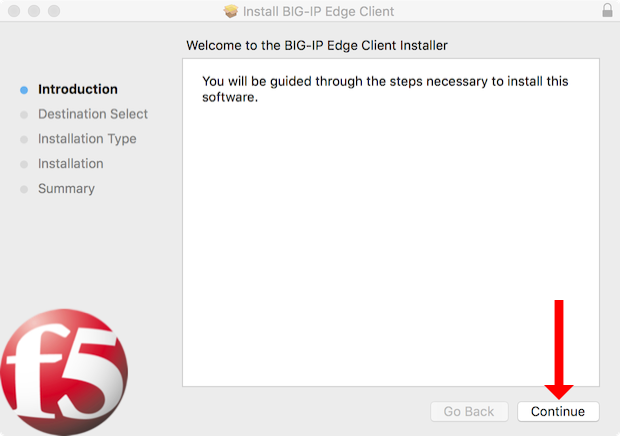
6. Click Install.

7. Enter your local macOS administrator password.
8. To finish the installation, click Close.
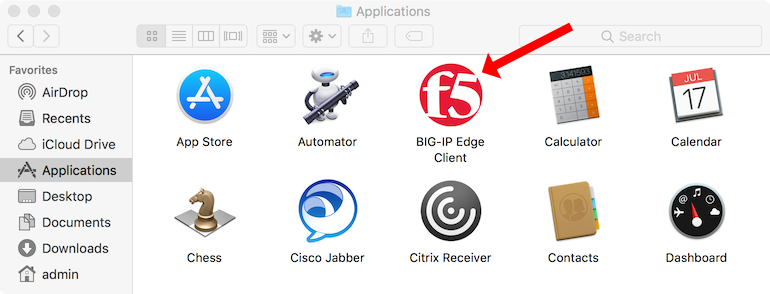
9. Go to your Applications folder and open the BIG-IP Edge Client.
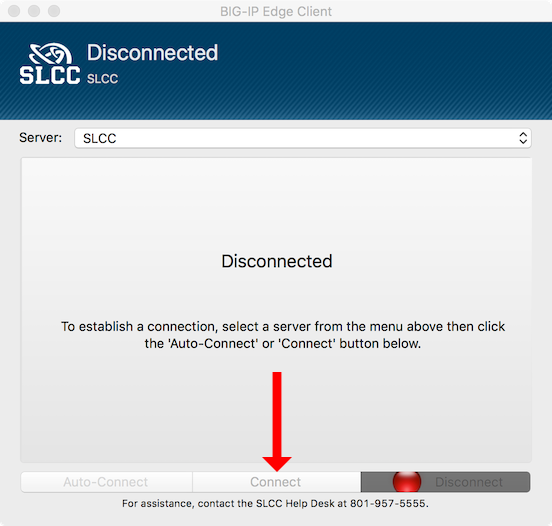
 10. Click Connect.

11. Enter your username and password. Click Logon.
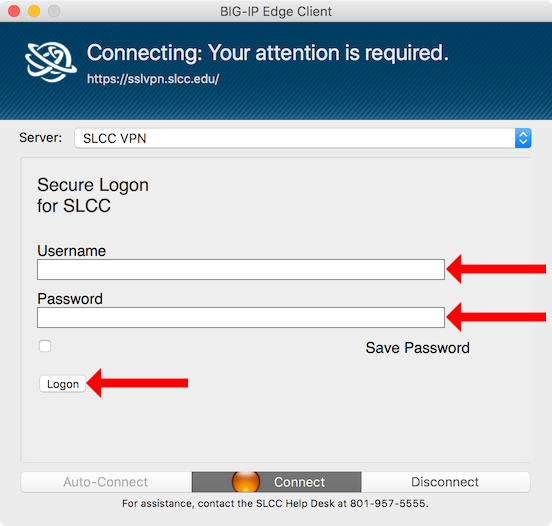

12. You are now connected to the SLCC VPN. This window should close itself automatically.
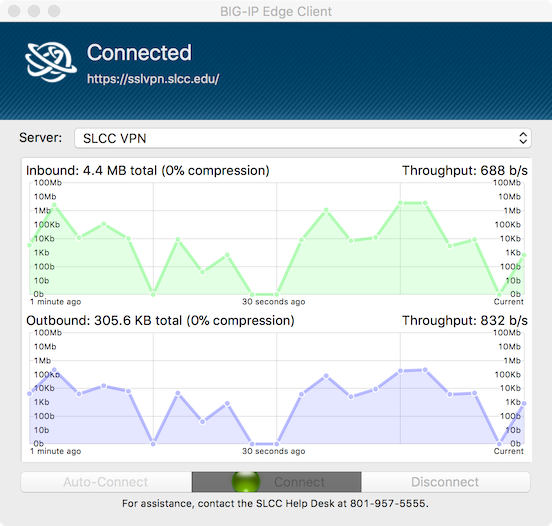

13. You can check the status of your connection in the top right corner of your Mac status bar. If the VPN connection is active, the F5 icon appears red. If you are disconnected, the F5 icon appears grey. If you want to disconnect the VPN connection, click the F5 icon and choose Disconnect.

If you have any comments or suggestions, please provide them in the Feedback section below.
If you have any questions or issues, you can contact Technical Support:
Telephone: 801-957-5555
Email: helpdesk@slcc.edu
VPN Client for Windows OS