Body
Follow the steps below to sign Financial Responsibility forms through MYSLCC
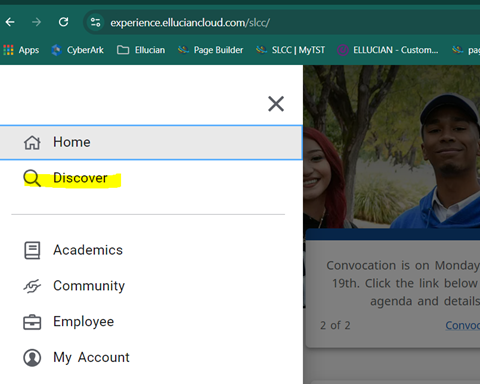
- Log into MYSLCC and click on the hamburger menu

- Click on Discover
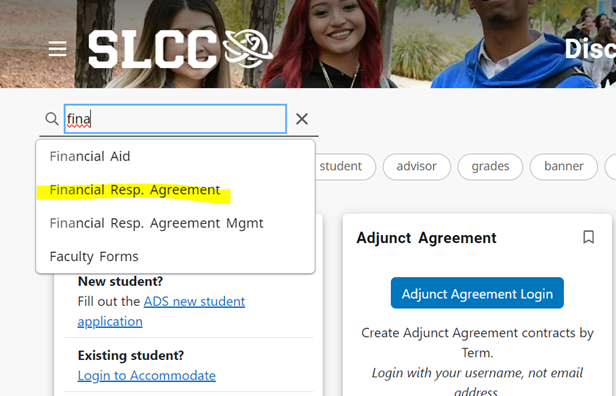
- Search for "Financial Responsibility"
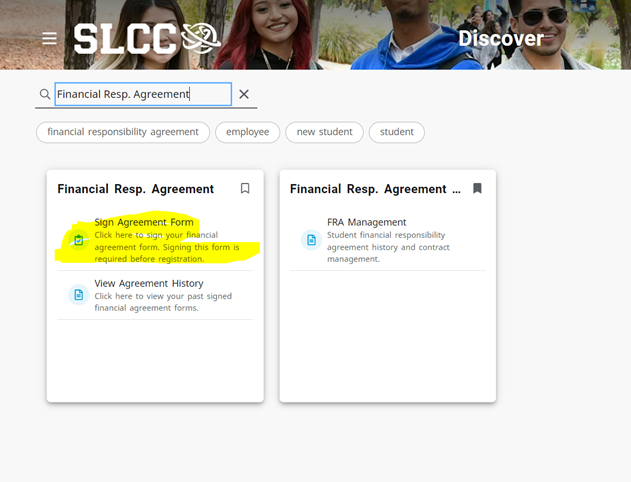
- On the ‘Financial Resp. Agreement Card’ click on the first link: ‘Sign Agreement Form.’
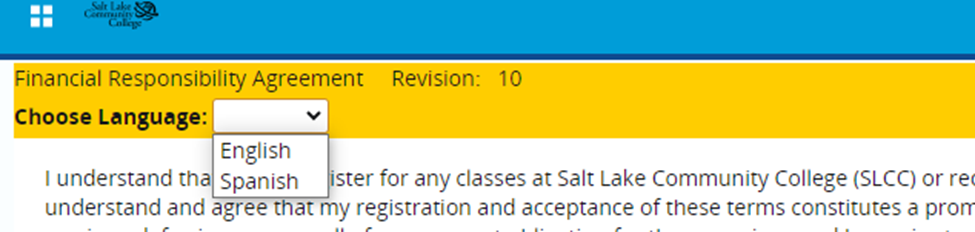
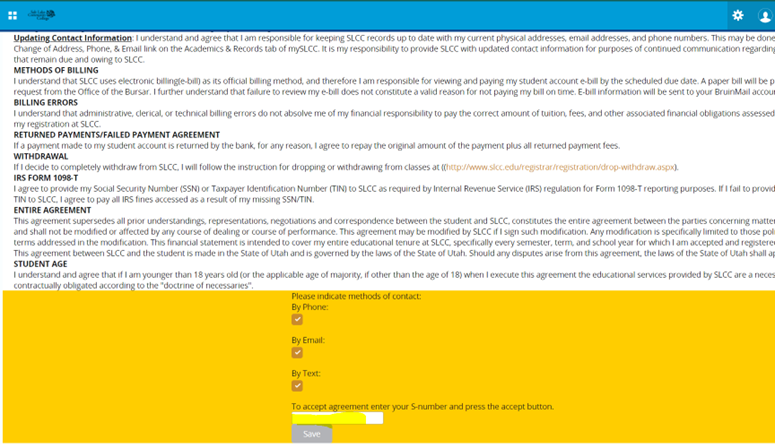
- The form will display in English, you may also view the form in Spanish.
- Review the contract and enter the methods of contact that you wish to have for billings. Enter your S#, including the S, and click Save. If the form returns an error, please correct the issue if possible. If the error is in a language other than the one selected, please wait 5 minutes to see if the background process resubmitted your information.
To make sure you have successfully submitted the Financial Responsibility form, click on View Agreement History on the "Financial Resp. Agreement" card on the MYSLCC Home Page.
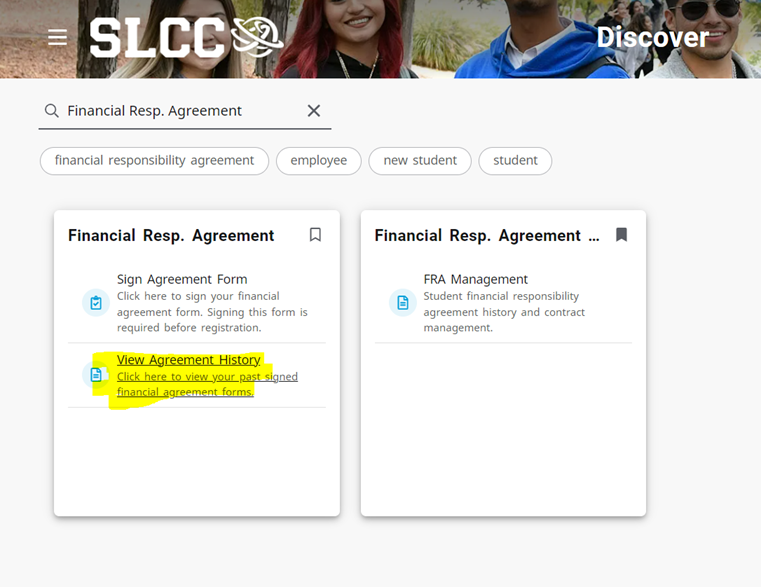
Make sure the information you submitted is in the Agreement History with the date and time that you submitted the form.
NOTE: If you get an error, particularly one in a language other than the one selected, you may have to wait up to 5 minutes for the information to post and clear the related action item. A background process will resubmit the information you submitted. Make sure you have your most recent agreement recorded on this history page by checking the date and time submitted. Otherwise, you will need to repeat the process.